
Builder
Builder overview
How the Builder is laid out, how to open the Control Panel, and how saving and publishing work.
The Builder is where you design your storefront. It shows your real site as an editable preview and puts every design setting in a panel beside it. Open it from Dashboard → Builder.
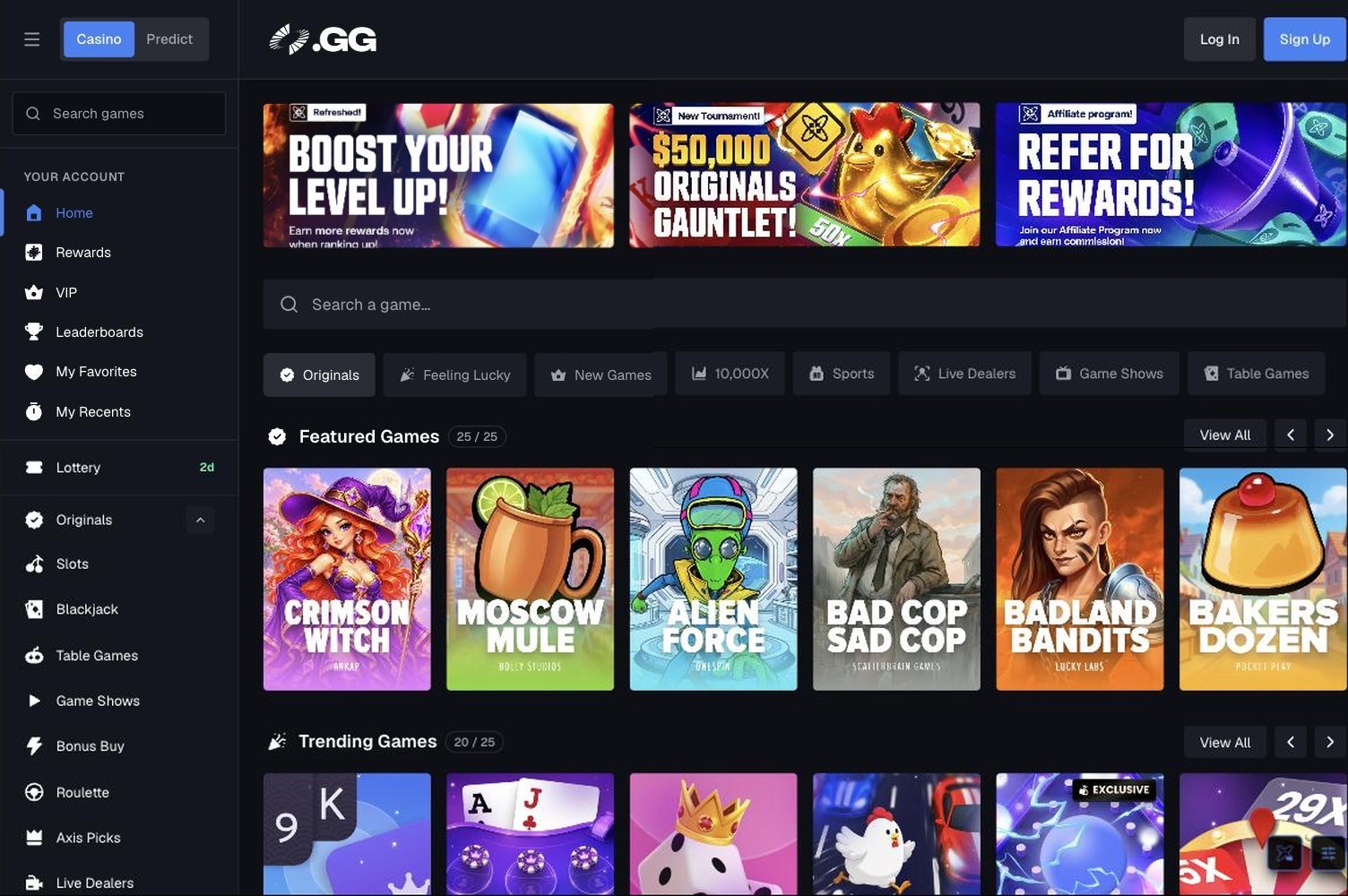
The two parts of the screen
| Part | What it is |
|---|---|
| The canvas | Your storefront, live. Scroll it, switch between Casino and Predict, and click parts of the page to edit them in place |
| The Control Panel | A panel on the right holding every setting, in four tabs |
Opening the Control Panel
Two small buttons float at the bottom right of the canvas. The one with the sliders icon opens and closes the Control Panel. The other opens the AI assistant.
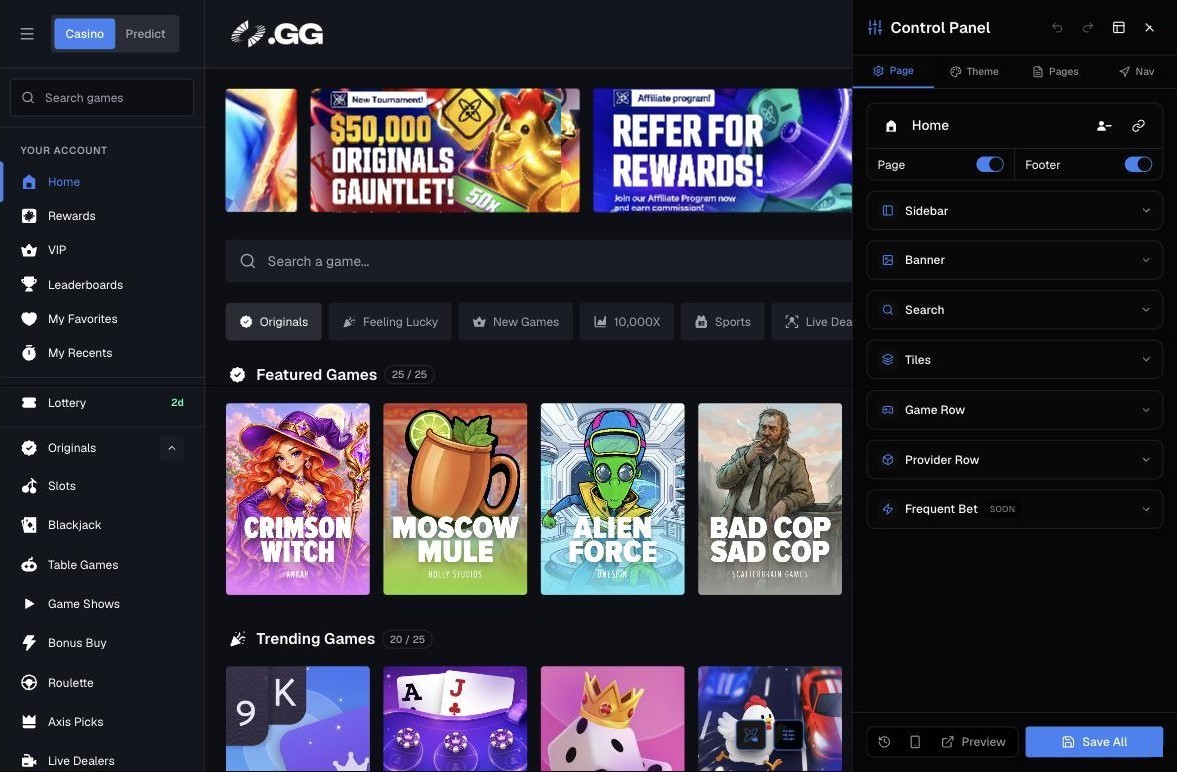
Control Panel tabs
| Tab | What you set there | Read more |
|---|---|---|
| Page | The sections on the page you are editing: sidebar, banners, search, tiles, game rows, provider row | Page sections |
| Theme | Colours, fonts and corner radius for the whole site | Theme |
| Pages | Every page on your site, and creating new ones | Pages |
| Nav | Header, sidebar, footer, mobile layout and popups | Navigation, footer and popups |
Pages with their own settings
The Page tab changes with the page you have open. Some pages have a full set of design settings of their own.
| Page | Read more |
|---|---|
| Predictions | The Predictions page |
| Lottery | The Lottery page |
| Game category pages, Blog, Favorites and Recents | Category, blog and account pages |
| A pack or Single, on a packs platform | Pack pages and the opening animation |
Popups have their own editor under Nav: see Popups. If you run a packs platform, read Building a packs storefront for what differs.
Editing on the canvas
Many things can be changed by clicking them directly on the preview.
| Click | To |
|---|---|
| Your logo ("Click to change logo") | Upload a new logo |
| A banner ("Edit banner") | Change that banner |
| A tile icon ("Click to change icon") | Pick a different icon |
| An empty provider slot ("Select Provider") | Choose which provider fills it |
| A game row's counter, for example 20 / 25 | See how many of the row's 25 slots are filled |
| A row or section title ("Double-click to rename") | Rename it |
| The header toggle | Open its settings |
| The Log In and Sign Up buttons | Open the sign-in button settings |
| A pack on a packs platform ("Edit pack in Pack Studio") | Open that pack for editing |
Click to edit, ⌥-click to use
On the canvas a plain click selects a thing for editing. It does not press it. To use a control the way a player would (flip the toggle, open the sign-up popup, follow a link), hold Option (⌥) and click. The tooltip on each element says so: "⌥-click to interact".
Each game row holds up to 25 games. The counter beside the row title shows how many slots are in use.
The AI assistant
The assistant has its own panel, New AI Chat, which opens from the other floating button at the bottom right of the canvas. Describe what you want in plain language, or start from one of the four shortcuts.
| Shortcut | What it helps with |
|---|---|
| Theme colors | Choosing or changing your colour palette |
| Auto-populate | Filling your game rows |
| Engagement | Sections that keep players active |
| Add sections | Adding new sections to the page |
Anything the assistant changes is an ordinary unsaved change. Review it on the canvas, undo it if you do not want it, and save when you are happy.
Undo and redo
Undo and Redo sit at the top of the Control Panel. They are greyed out until you make a change, which is also a quick way to confirm that nothing is unsaved.
Previewing
| Button | What it does |
|---|---|
| Preview | Shows the storefront without the editing controls |
| Preview on phone / tablet | Shows the storefront at phone and tablet sizes |
| Preview as logged in (Page tab) | Switches the canvas between what a signed-out visitor and a signed-in player see |
Always check the phone preview before you publish. Most players arrive on a phone.
Saving and publishing
Nothing in the Builder reaches your live site until you save it.
- Make your changes.
- Click Save All at the bottom of the Control Panel.
- Give the version a name you will recognise later.
- Publish it when you want players to see it.
A version is either Saved (stored, not live) or Published (live on your storefront).
Version history
Click the Version history button at the bottom of the Control Panel to see every version.
| Each entry shows | Meaning |
|---|---|
| Name | The name you gave the save |
| Version number | Counts up with every save: v60, v61 and so on |
| Saved or Published | Whether that version went live |
| Who and when | The operator who saved it and the date |
| Changes | How many changes the save contained |
Name versions after what changed ("new footer", "black friday banners") so you can find the right one quickly.
Plan limits
Some Builder features need the Plus plan. They show a "Plus plan required" notice with an Upgrade button. On the free tier this includes the preset themes, the colour palette, typography, the global corner radius and the sign-up popup editor.