
Casino
Games and providers
Turn on game providers, bring their games onto your casino, and control how each game appears.
Your casino's lobby is built in three layers.
| Layer | Where | What you control |
|---|---|---|
| Providers | Games → Providers Settings | Which studios are switched on |
| Games | Games → Game Settings | Which individual games players can see |
| Layout | Builder | Which rows, tiles and providers appear on the homepage |
A game is visible to players only when its provider is active and the game itself is active.
Set up your game providers
- Open Platform Management → Games → Providers Settings.
- Find the provider. Use the search box, or the All Status filter to show only inactive ones.
- Flip the provider's switch in the Active column. Its status changes to Active.
- Open Games → Game Settings and click Sync new games to pull that provider's catalogue in.
- Review the new games. Each one arrives Active or waiting, depending on Auto-release Games.
- Open your storefront and check the games launch.
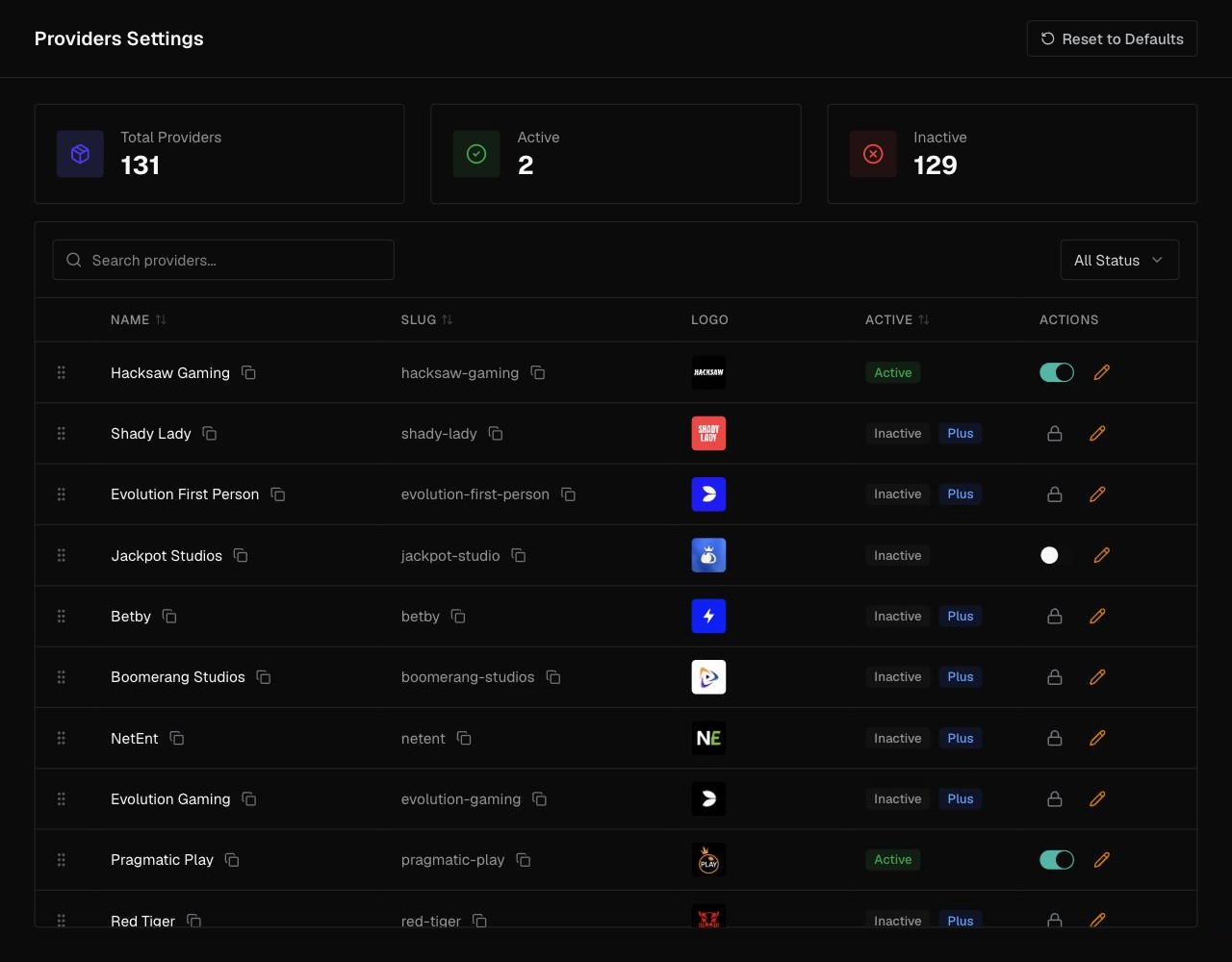
Providers that need a higher plan
A Plus badge next to a provider means it is only available on the Plus plan or above. You can see it in the list, but you cannot activate it until you upgrade.
Providers Settings
Counters at the top show Total Providers, Active and Inactive.
| Column | What it shows |
|---|---|
| Name | The provider's name, with a copy button |
| Slug | The provider's identifier in URLs, with a copy button |
| Logo | The logo shown on your storefront |
| Active | The on/off switch |
| Actions | Edit provider |
| Control | What it does |
|---|---|
| Search providers | Finds a provider by name |
| All Status | Filters to active or inactive providers |
| Drag handle | Reorders providers |
| Reset to Defaults | Restores the default provider configuration |
Turning a provider off
Flip its switch off. All of that provider's games disappear from your storefront. The games keep their own settings, so they come back as they were when you turn the provider on again.
Game Settings
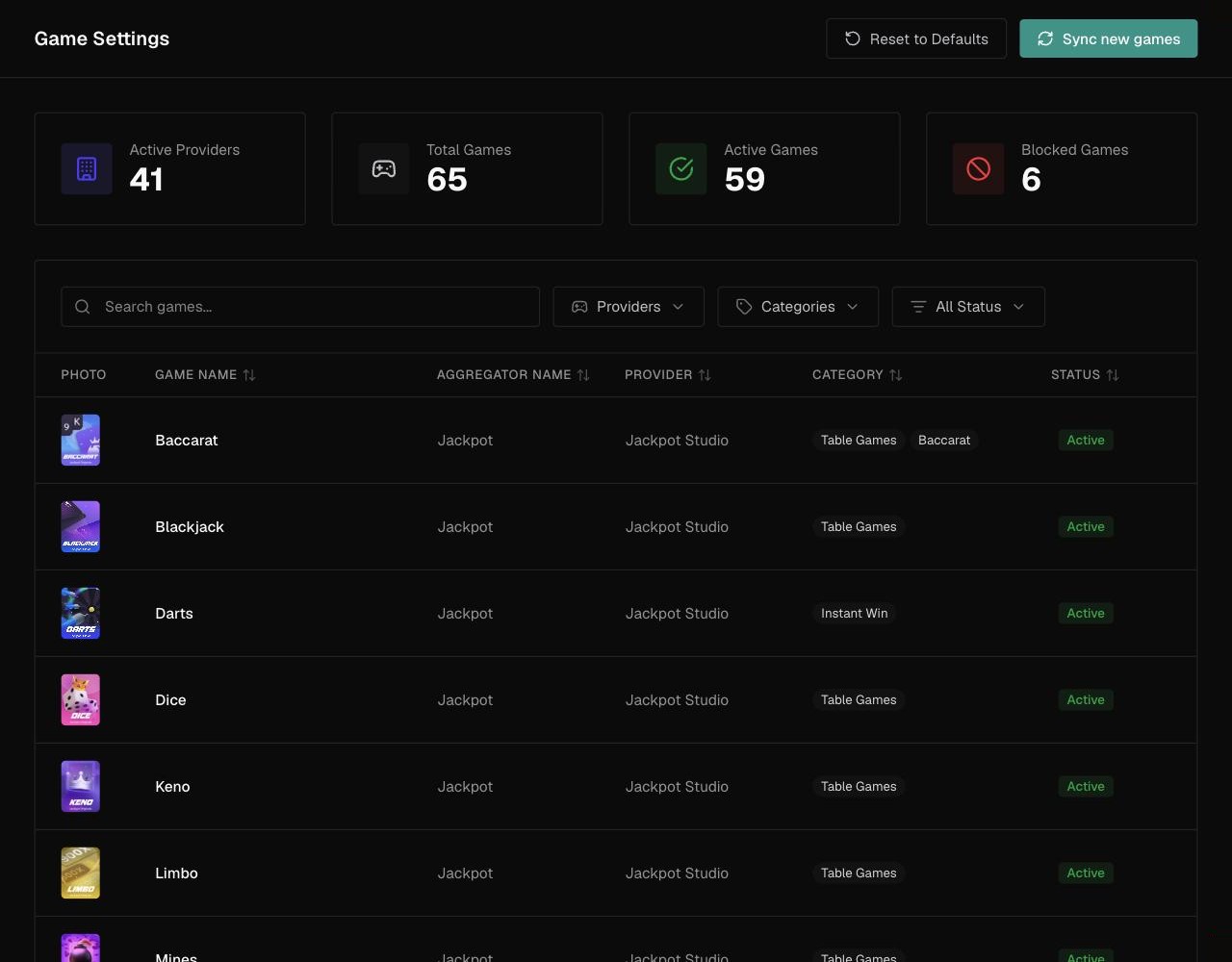
Game Settings lists every game available to your platform. Four counters sit at the top: Active Providers, Total Games, Active Games and Blocked Games.
| Column | What it shows |
|---|---|
| Photo | The game's thumbnail |
| Game Name | The game's title |
| Aggregator Name | The aggregator that delivers the game |
| Provider | The studio that makes it |
| Category | The categories the game appears under, for example Slots, Table Games, Bonus Buy, New Releases |
| Status | Active or Blocked |
| Control | What it does |
|---|---|
| Search games | Finds a game by name |
| Providers | Shows one provider's games |
| Categories | Shows one category |
| All Status | Shows only active or only blocked games |
| Sync new games | Pulls the latest games from your active providers |
| Reset to Defaults | Restores the default game configuration |
Click any row to open that game's settings.
Edit a game
Each game has its own settings page. Changes save automatically: the page shows "All changes saved" when they are stored, and there is no Save button.
Basic Information
| Field | What it does |
|---|---|
| Game Name | The title players see |
| Game Slug | The game's address on your storefront |
| Categories | The categories the game is listed under. A game can be in several |
| Status | The Visible to players switch. Off hides the game without touching its provider |
Appearance
| Field | What it does |
|---|---|
| Thumbnail Picture | The game's tile image. Change Thumbnail uploads a new one |
| Border Color | A coloured border around the tile |
Multilingual Descriptions
| Field | What it does |
|---|---|
| Language | The language you are editing |
| Description | The text shown on the game's page in that language |
| Auto Translate | Translates the description into your other languages |
Reset to defaults returns the game to the settings it arrived with.
Common jobs
| You want to | Do this |
|---|---|
| Hide one game | Open the game and turn off Visible to players |
| Put a game in "New Releases" | Open the game and add the category under Categories |
| Replace a poor thumbnail | Open the game and use Change Thumbnail |
| Hide a whole studio | Turn the provider off in Providers Settings |
| Feature games on the homepage | Add them to a row in the Builder |
Game Releases
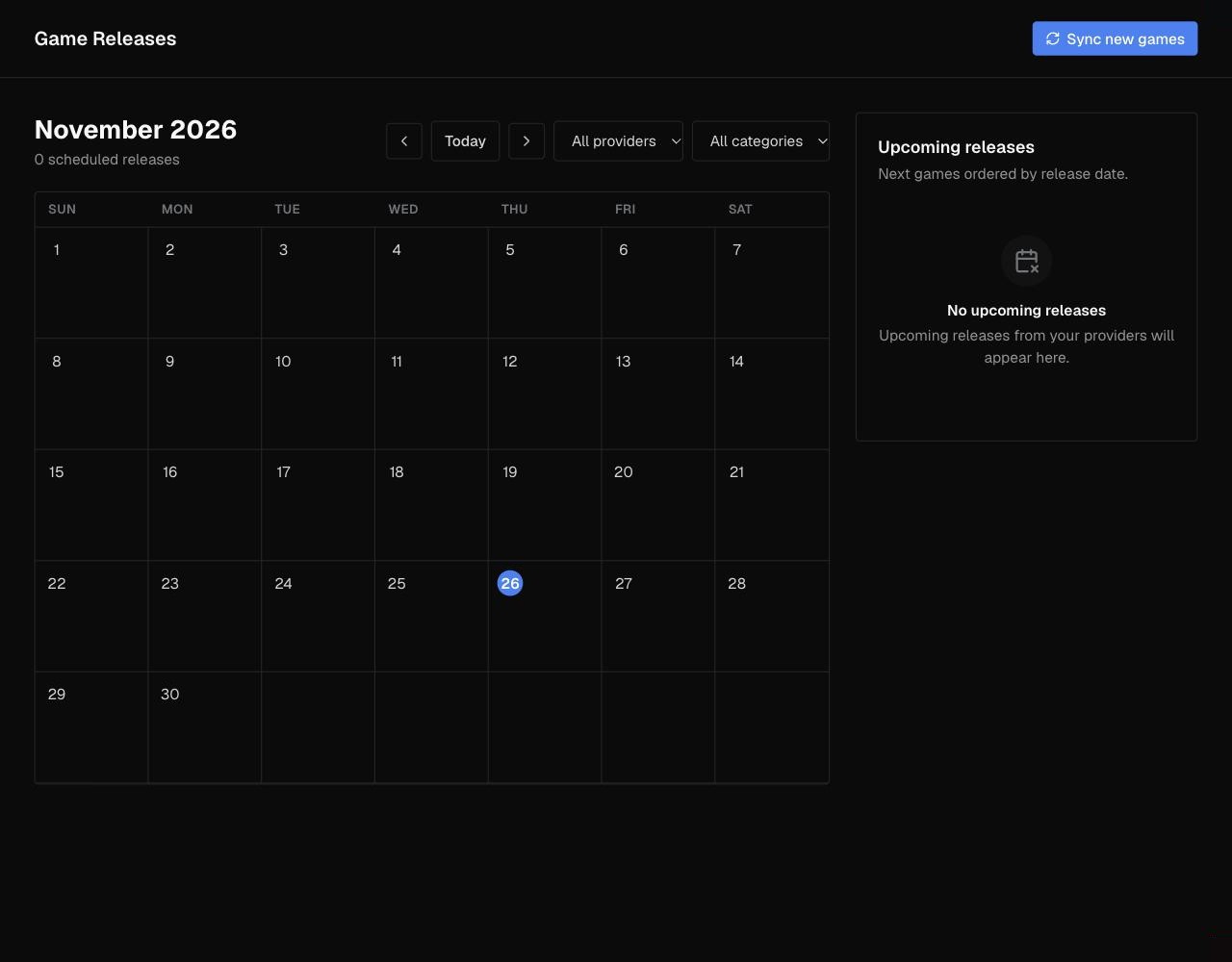
Game Releases is a calendar of upcoming games from your providers. Use the arrows or Today to move between months, and the provider and category filters to narrow the view. The Upcoming releases panel lists the next games in release order.
Casino settings
Settings → Casino holds four options that apply to every game.
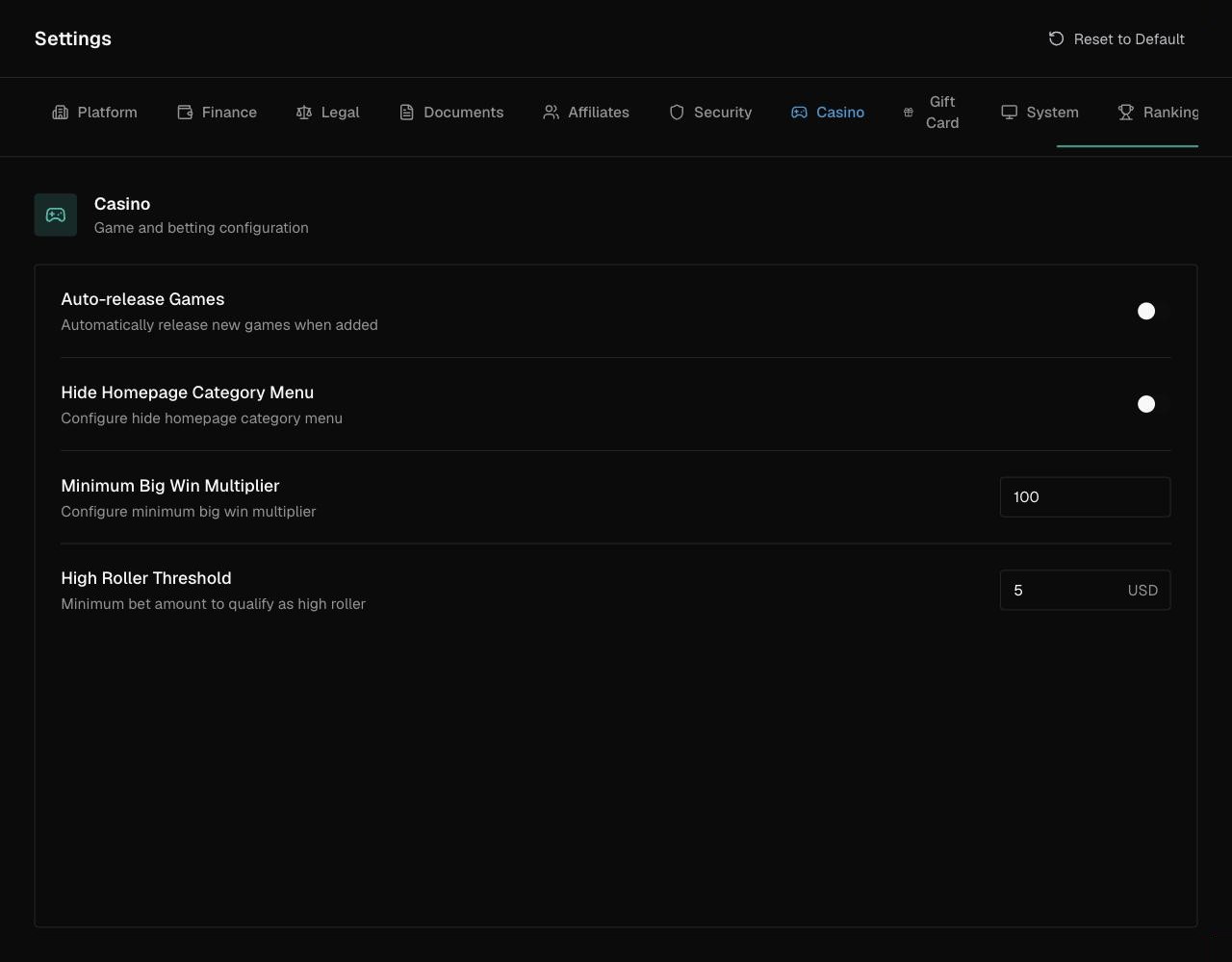
| Setting | What it does |
|---|---|
| Auto-release Games | Automatically releases new games when they are added |
| Hide Homepage Category Menu | Hides the category menu on the storefront homepage |
| Minimum Big Win Multiplier | The smallest win multiplier that counts as a "big win" |
| High Roller Threshold | The minimum bet amount, in USD, that qualifies a bet as high roller |
With Auto-release Games off, new games wait for you to activate them. Leave it off if you review each title before it goes live.
Promote Games
Games → Promote Games is marked Coming Soon. It will let you feature specific games, create promotional banners and highlight new releases.