
Team
Operators and roles
Invite your team to the back office and control what each person can do.
An operator is a member of your team with access to the back office. Players never appear here. On a casino platform these pages sit under Users & Access → Backoffice; on a packs platform they sit directly under Users & Access.
Operators
The Operators page lists everyone with access.
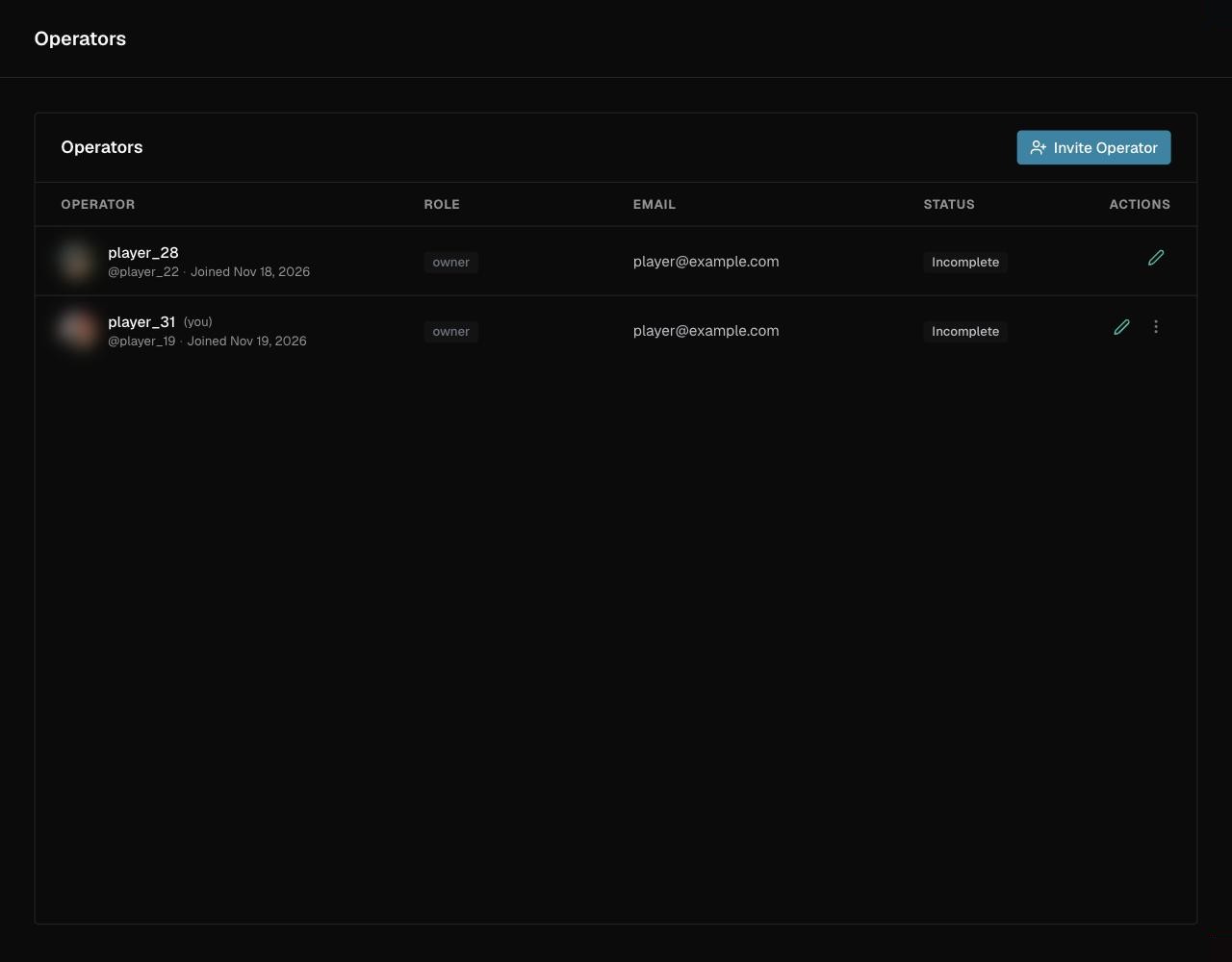
| Column | What it shows |
|---|---|
| Operator | Name, username and the date they joined |
| Role | Their role, for example owner |
| The email they sign in with | |
| Status | Whether their operator profile is complete |
| Actions | The More actions menu for that person |
Inviting someone
- Click Invite Operator.
- Enter their Name and Email.
- Choose a Role, for example admin.
- Click Send invitation. They receive an email invite and join by signing in at
id.axis.incwith that address.
Roles and permissions
The Permissions page holds your custom roles.
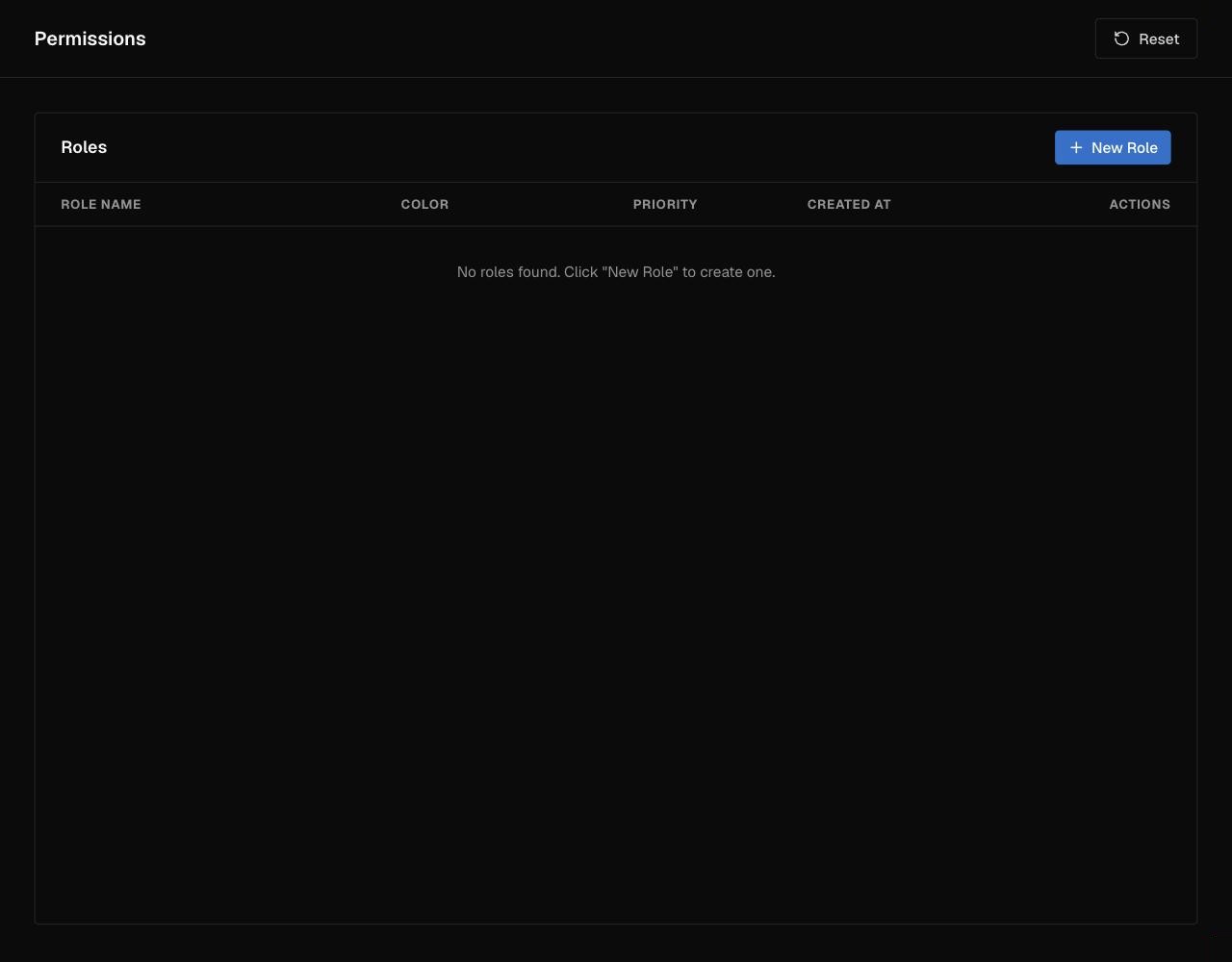
| Column | What it shows |
|---|---|
| Role Name | The name your team sees |
| Color | The colour used for the role's label |
| Priority | The role's rank relative to other roles |
| Created At | When the role was created |
Creating a role
- Click New Role.
- Enter a Role Name and pick a Color.
- Set its Priority. When someone holds more than one role, the higher priority role takes precedence.
- Tick Default Role if new operators should get this role automatically.
- Click Create Role.
Custom roles need the Max plan.
Reset restores the default roles and removes your custom ones.
Notifications
Each operator's notification centre can show five kinds of alert. Choose them under Settings → Notifications (casino platforms).
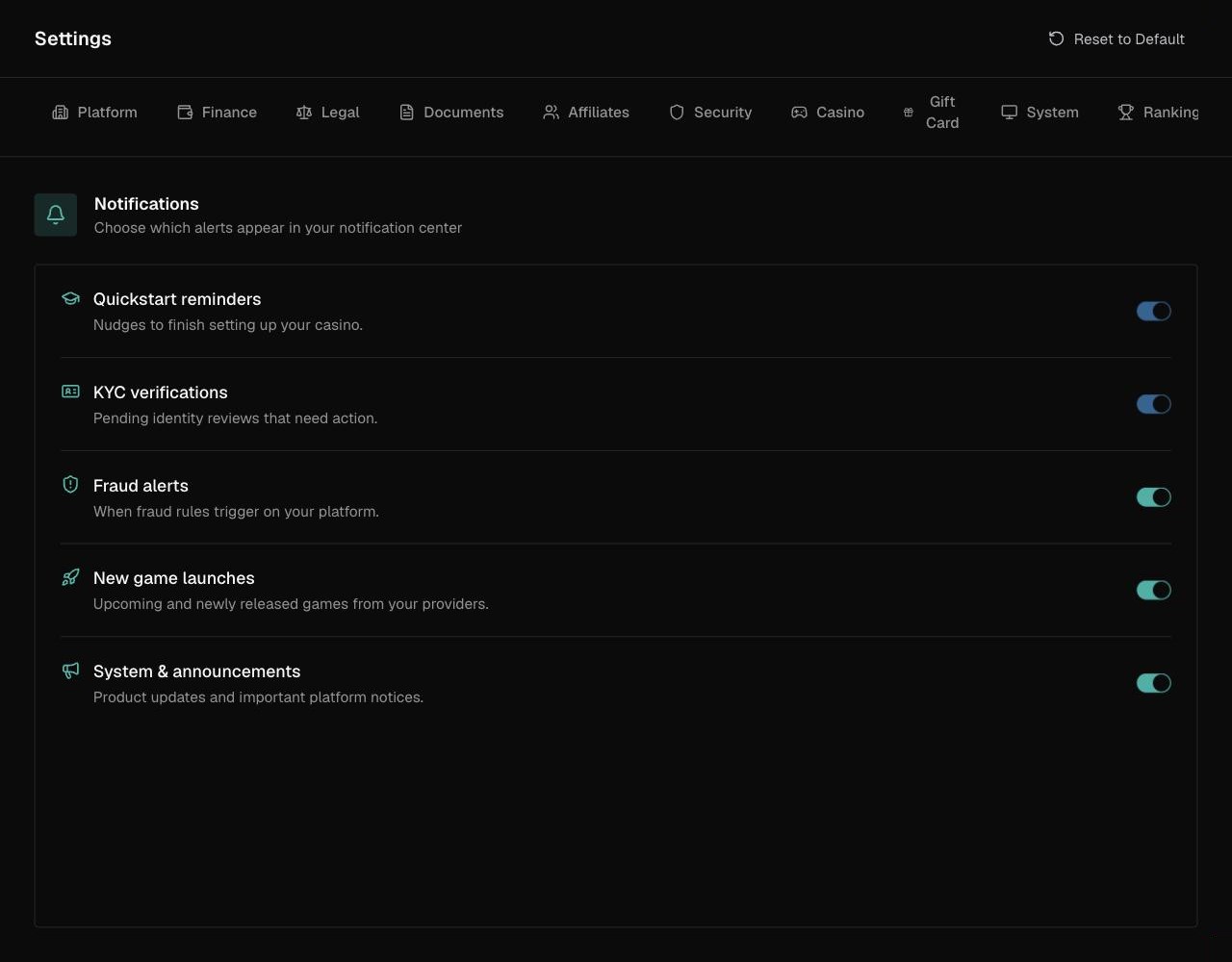
| Alert | What triggers it |
|---|---|
| Quickstart reminders | Unfinished setup steps |
| KYC verifications | Pending identity reviews that need action |
| Fraud alerts | A fraud rule triggering on your platform |
| New game launches | Upcoming and newly released games from your providers |
| System & announcements | Product updates and important platform notices |