
Players
Player profile
Every tab, switch and action on a player's profile, and what each one does.
Click any row in Users to open that player's profile. This is where you review one player's money, play and identity, and where you take action on their account.
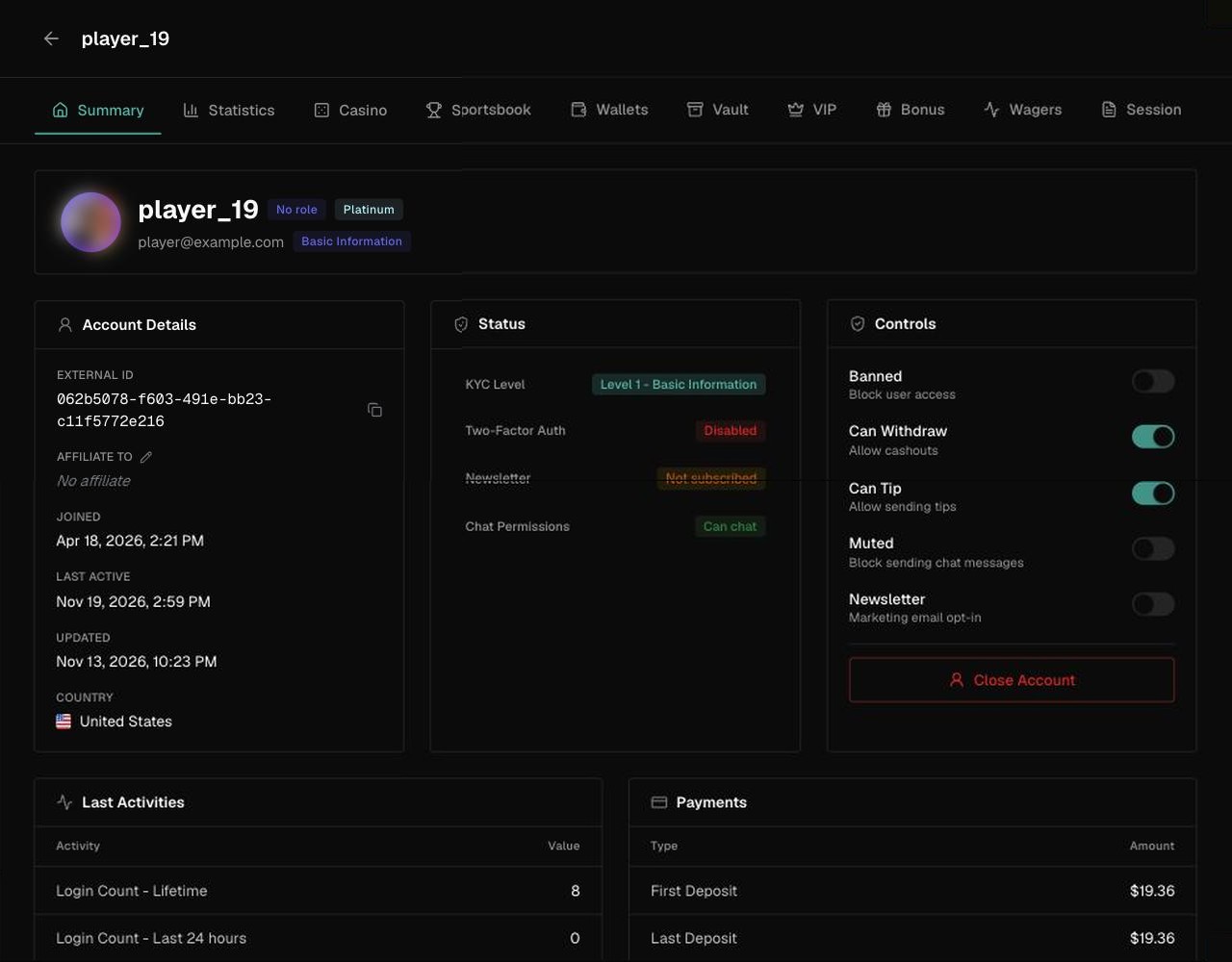
The header
The header stays visible on every tab.
| Element | What it shows |
|---|---|
| Username and avatar | The player's display name |
| Role chip | Any role the player holds. No role for an ordinary player |
| Rank chip | Their current rank, for example Platinum or Unranked |
| The address they registered with | |
| KYC chip | The highest KYC level they have reached, or No KYC |
| Unverified email | Shown when the player has not confirmed their email address |
The back arrow returns you to the Users list.
Tabs at a glance
| Tab | What it is for | Platform |
|---|---|---|
| Summary | Account details, status and account controls | Both |
| Statistics | Revenue, deposits, logins and play analytics | Both |
| Casino | Game session history | Casino |
| Sportsbook | Sports bet history | Casino |
| Packs | Pack opening history | Packs |
| Wallets | Balances and manual adjustments | Both |
| Vault | Vault balances and adjustments | Casino |
| Inventory | Cards the player holds | Packs |
| Orders | Shipping orders | Packs |
| Marketplace | Listings and trades | Packs |
| VIP | Rank, progress and manual rank changes | Both |
| Bonus | Bonuses issued, and issuing a new one | Both |
| Wagers | Wagering requirements, and assigning one | Casino |
| Session | Login sessions and signing the player out | Both |
| KYC | Identity submissions | Both |
| Affiliate, Communication, Limit | Coming soon | Both |
Summary
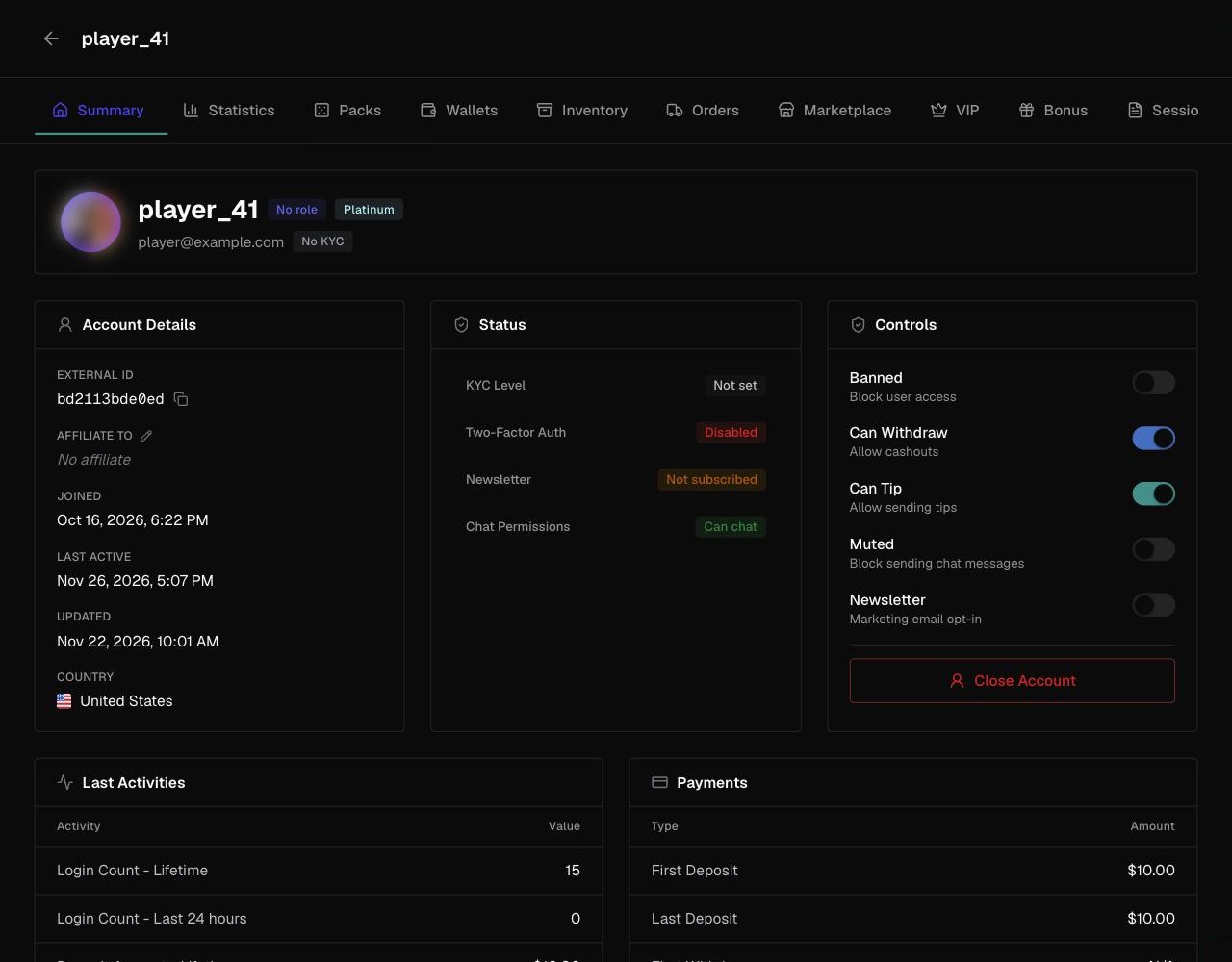
Account Details
| Field | What it is |
|---|---|
| External ID | The player's unique ID. Use the copy button and quote it to support |
| Affiliate To | The affiliate who referred the player. The pencil icon changes it |
| Joined | When the account was created |
| Last Active | When the player was last seen |
| Updated | When the account record last changed |
| Country | The player's country |
Status
Read-only indicators for the account.
| Indicator | Values |
|---|---|
| KYC Level | The level reached, or Not set |
| Two-Factor Auth | Enabled or Disabled |
| Newsletter | Subscribed or Not subscribed |
| Chat Permissions | Whether the player can chat |
Controls
These switches act on the account as soon as you flip them.
| Control | On means | Use it when |
|---|---|---|
| Banned | The player is blocked from the platform | You need to shut out an abusive or fraudulent account |
| Can Withdraw | The player may request cashouts | Turn it off to freeze withdrawals during an investigation without banning the player |
| Can Tip | The player may send tips to other users | Turn it off if tips are being used to move funds between accounts |
| Muted | The player cannot send chat messages | A player is breaking chat rules but should keep playing |
| Newsletter | The player is opted in to marketing email | The player asks to be added or removed |
Close Account closes the account permanently. Use Banned if you may want to restore access later.
Last Activities and Payments
Two quick-reference tables sit below the controls.
| Table | Rows |
|---|---|
| Last Activities | Lifetime and last-24-hour login counts, lifetime casino win amount, and deposit and withdrawal counts and amounts for the last 24 hours |
| Payments | First and last deposit, first and last withdrawal, first and last tip |
Statistics
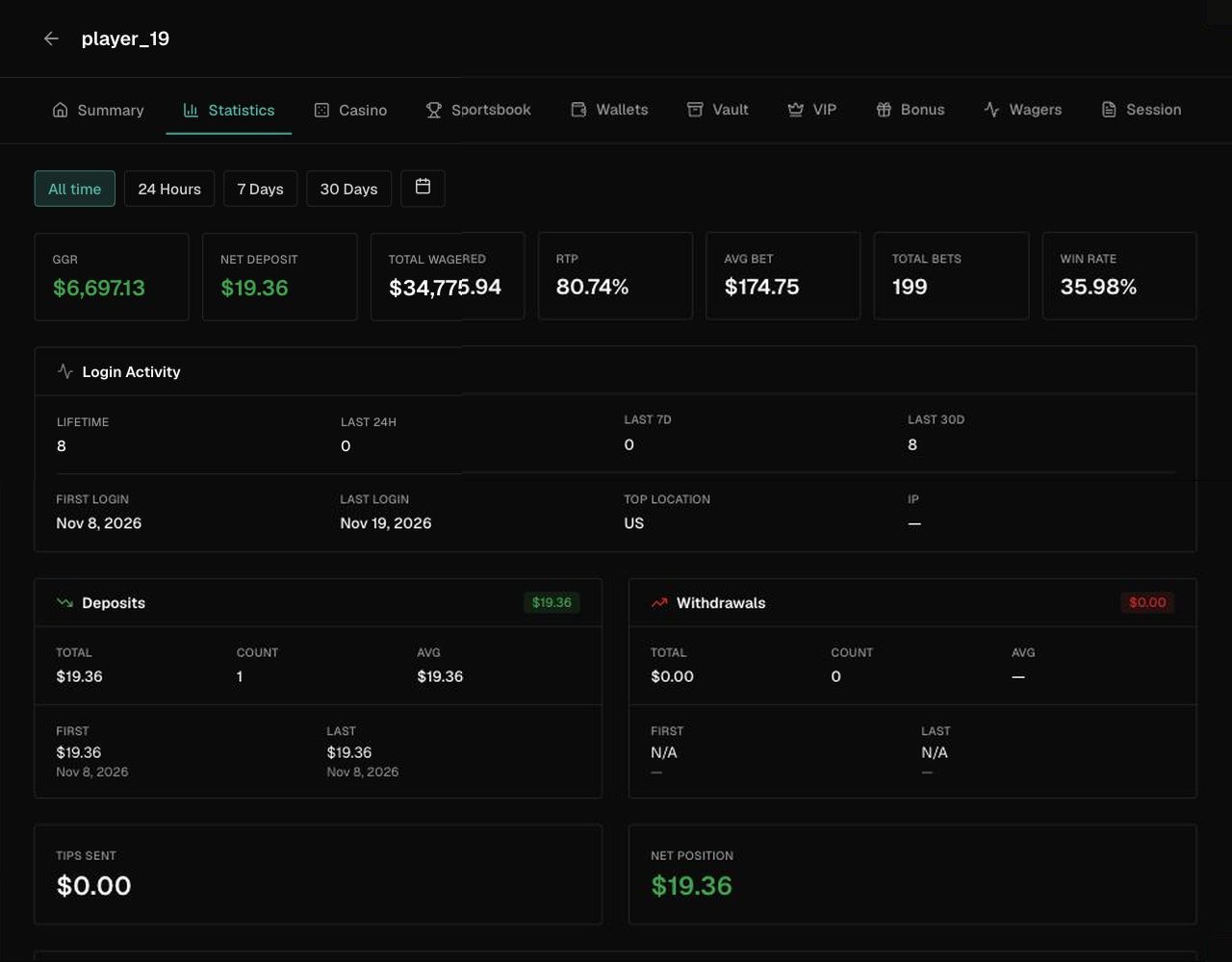
Pick a period at the top: All time, 24 Hours, 7 Days, 30 Days or a custom range.
Headline tiles
| Tile | What it is |
|---|---|
| GGR | What the platform won from this player: total wagered minus total won |
| Net Deposit | Deposits minus withdrawals |
| Total Wagered | The sum of all bets |
| RTP | Total won divided by total wagered. Above 100% means the player is ahead |
| Avg Bet | Total wagered divided by the number of bets |
| Total Bets | The number of bets placed |
| Win Rate | The share of bets that won |
A green GGR means the platform is ahead against this player. A negative GGR means the player is in profit.
Panels
| Panel | What it shows |
|---|---|
| Login Activity | Login counts (lifetime, 24 hours, 7 days, 30 days), first and last login, top location and IP |
| Deposits | Total, count, average, first and last |
| Withdrawals | Total, count, average, first and last |
| Tips Sent | The total the player has tipped others |
| Net Position | Money in minus money out for this player |
| Gaming Analytics | Sessions, bets, wins, win rate, wagered, won and profit or loss, plus four top-five lists: games by bet count, by amount wagered, by player profit and by player loss |
| Sportsbook Analytics | The same totals for sports bets |
The Top games by profit (player) list is the quickest way to see where a winning player is winning.
Casino and Sportsbook
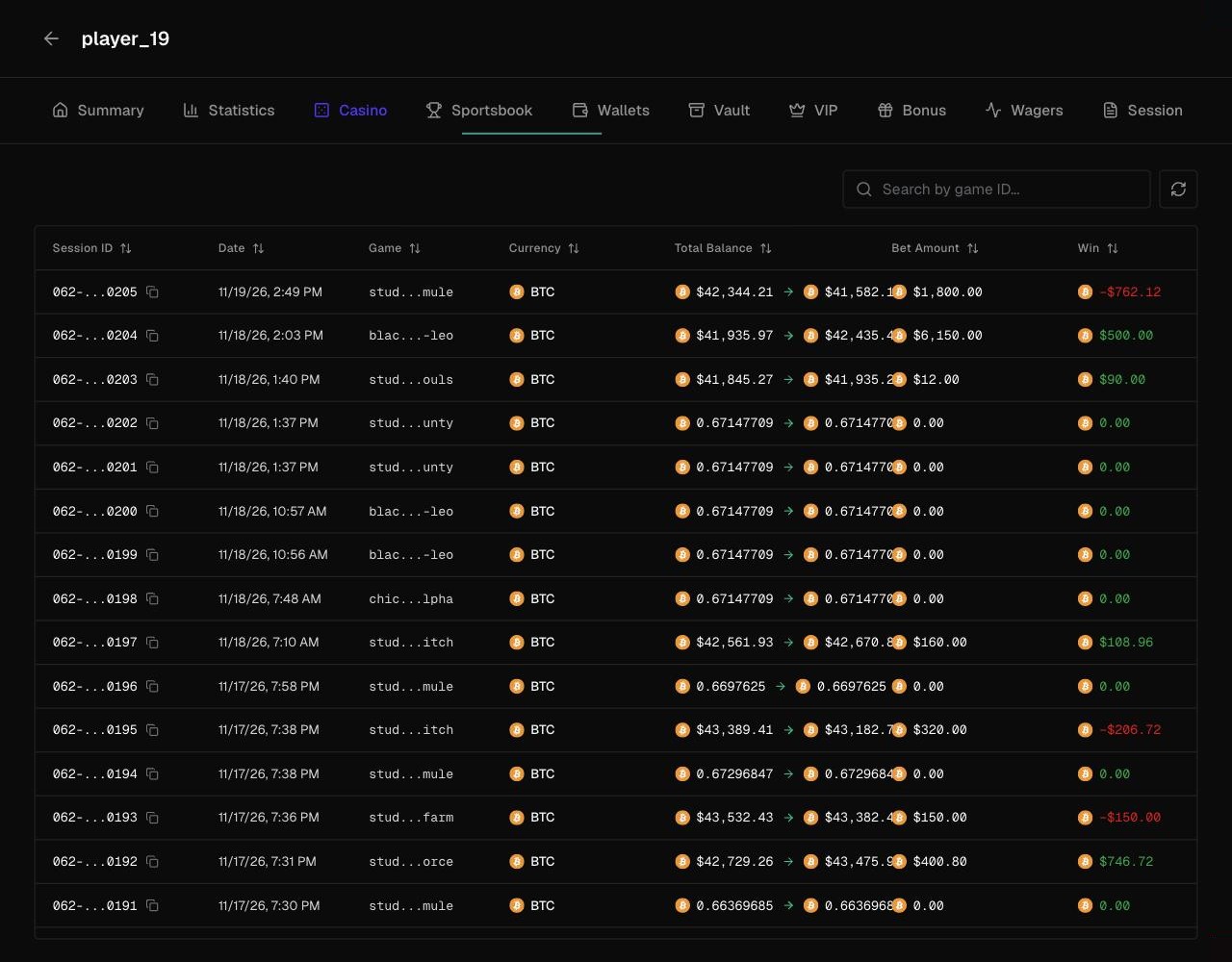
Each tab lists the player's sessions, newest first.
| Column | What it shows |
|---|---|
| Session ID | The session's ID. Use the copy button to quote it to a provider |
| Date | When the session took place |
| Game | The game played |
| Currency | The wallet currency used |
| Total Balance | The balance before and after the session |
| Bet Amount | The total staked in the session |
| Win | The net result. Green is a player win, red a loss |
Refresh reloads the list.
Wallets
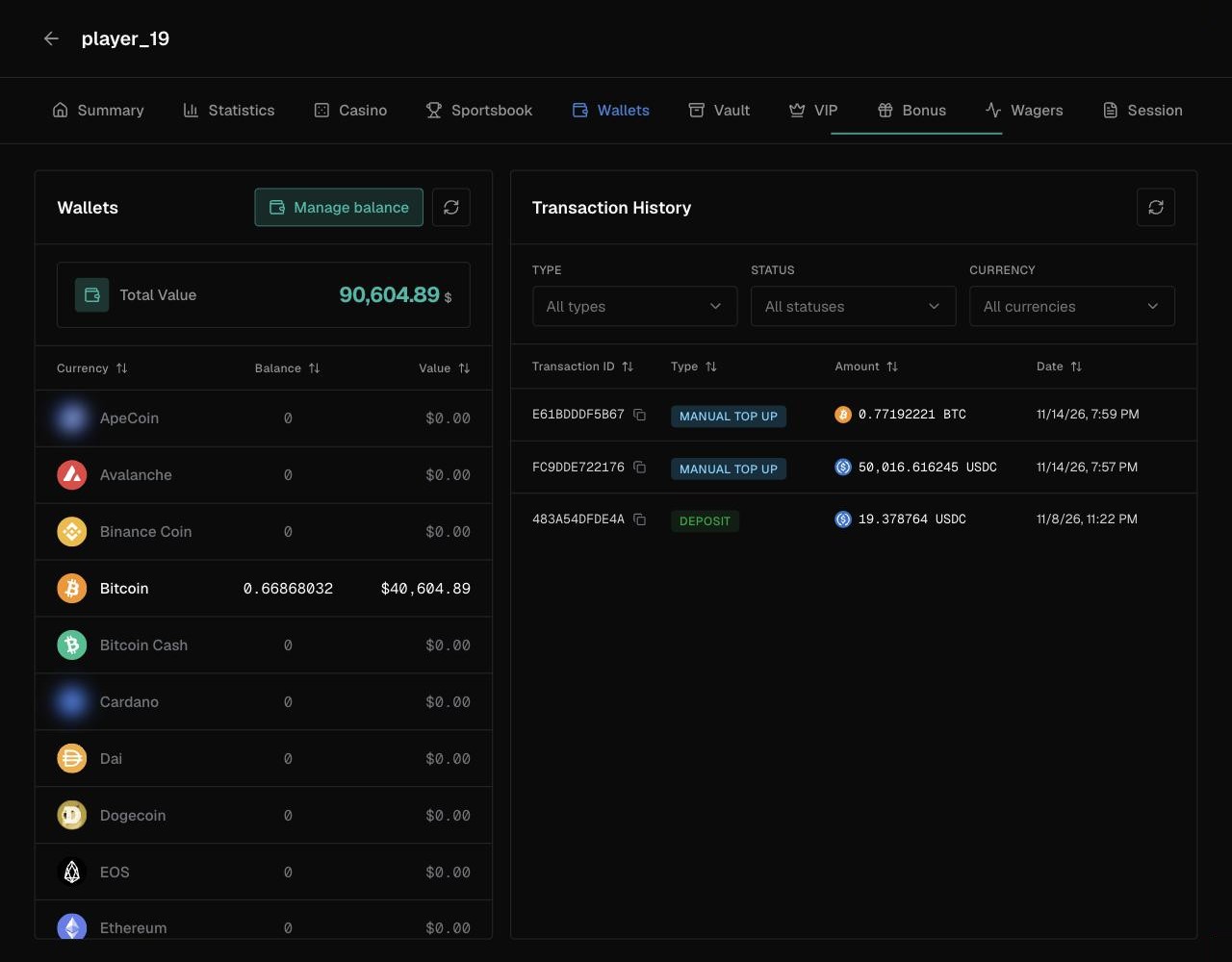
The Wallets tab shows the player's Total Value and a line for every supported currency with its Balance and its Value in dollars.
Adjusting a balance
- Click Manage balance.
- Choose the Currency.
- Choose the balance type: Cash or Play.
- Choose the Operation type, for example Top Up.
- Enter the Amount in USD.
- Enter a Reason. The reason is kept in the audit trail.
- Click Update wallet balance.
Manual adjustments appear in Transaction History as MANUAL TOP UP, so anyone reviewing the account can tell them apart from real deposits.
Transaction History
| Column | What it shows |
|---|---|
| Transaction ID | The transaction's ID, with a copy button |
| Type | For example DEPOSIT or MANUAL TOP UP |
| Amount | The amount and currency |
| Date | When it happened |
Filter by Type, Status or Currency.
Vault
The Vault tab has the same layout as Wallets, for funds the player has moved into their vault. It has its own Manage balance button and its own transaction history.
VIP
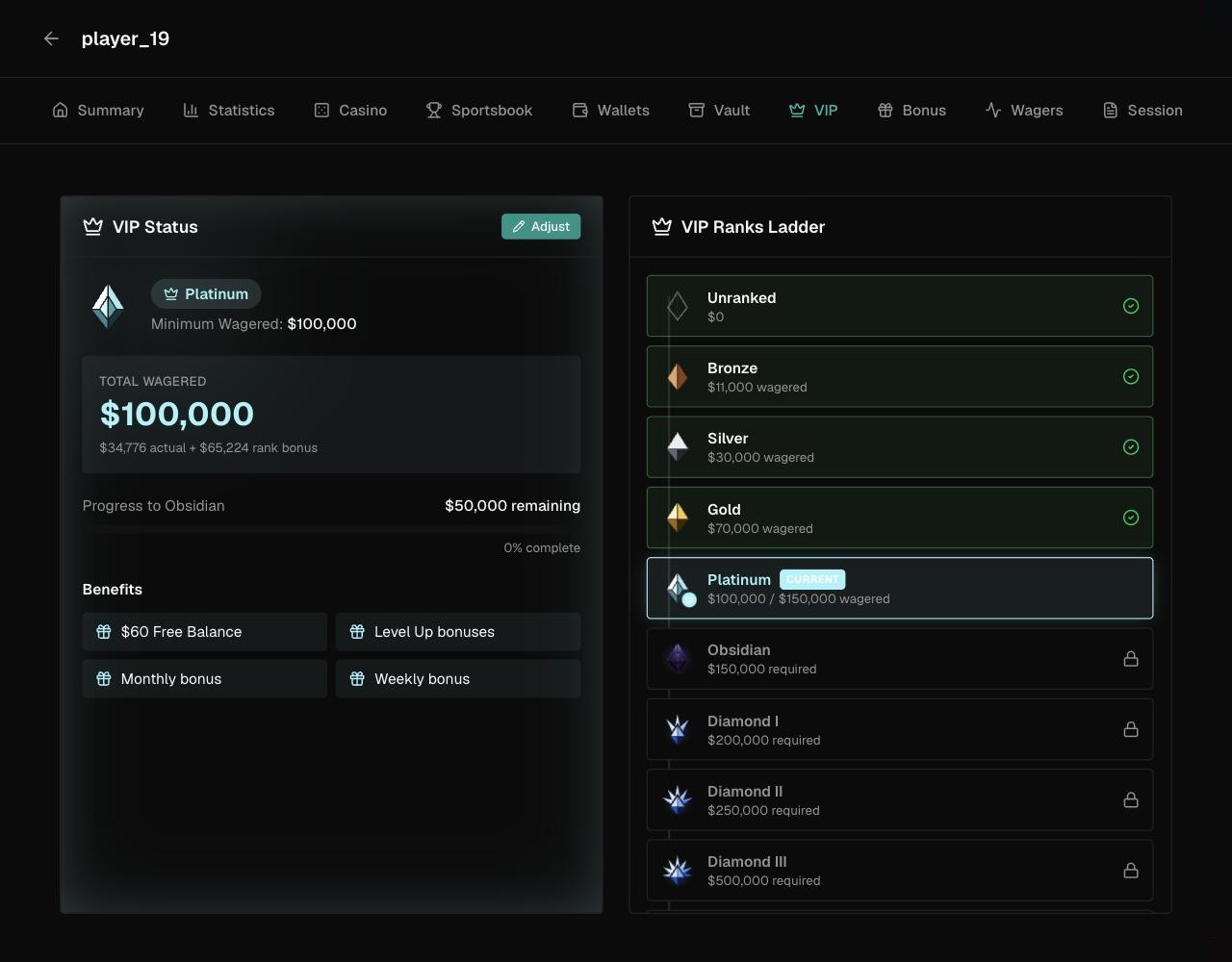
| Panel | What it shows |
|---|---|
| VIP Status | The current rank, its minimum wagered, the player's total wagered and their progress to the next rank |
| Benefits | What the current rank unlocks |
| VIP Ranks Ladder | Every rank with its threshold, and the player's position on it |
Changing a rank by hand
- Click Adjust.
- Pick the rank.
- Click Save.
When you place a player above the rank their wagering has earned, the profile shows the difference as a rank bonus: for example "$34,776 actual + $65,224 rank bonus". Their real wagering is not changed.
Bonus
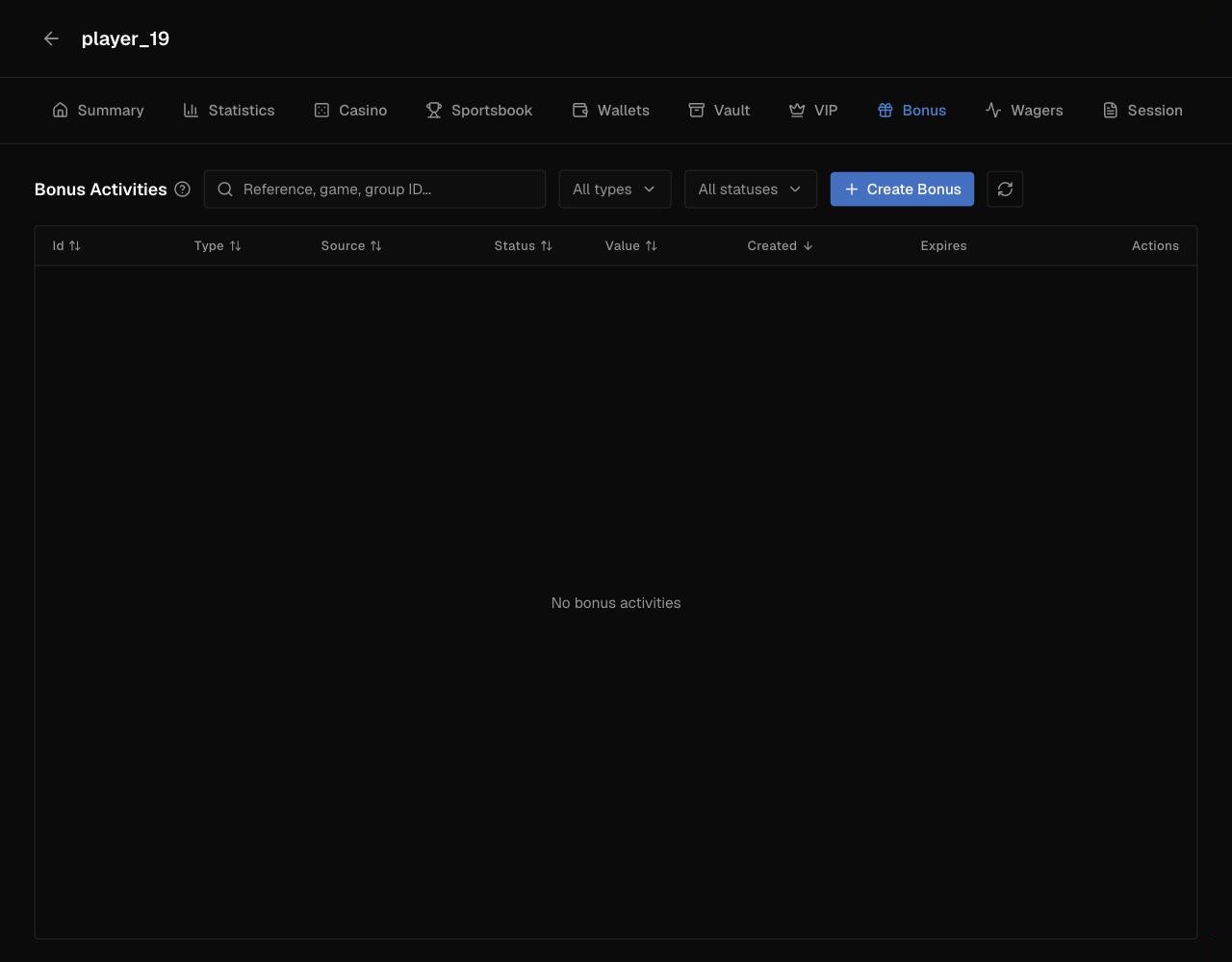
Bonus Activities lists every bonus the player has received.
| Column | What it shows |
|---|---|
| Id | The bonus record's ID |
| Type | The kind of bonus |
| Source | Where it came from |
| Status | Its current state |
| Value | Its size |
| Created / Expires | When it was issued and when it lapses |
Issuing a bonus
- Click Create Bonus.
- Choose the Reward Type.
- Choose a Wager Policy if the bonus should carry a wagering requirement.
- Set Expires. The default is 7 days from now.
- Add a Reason (optional), for example "KYC approved before rule was activated".
- Click Create.
Wagers
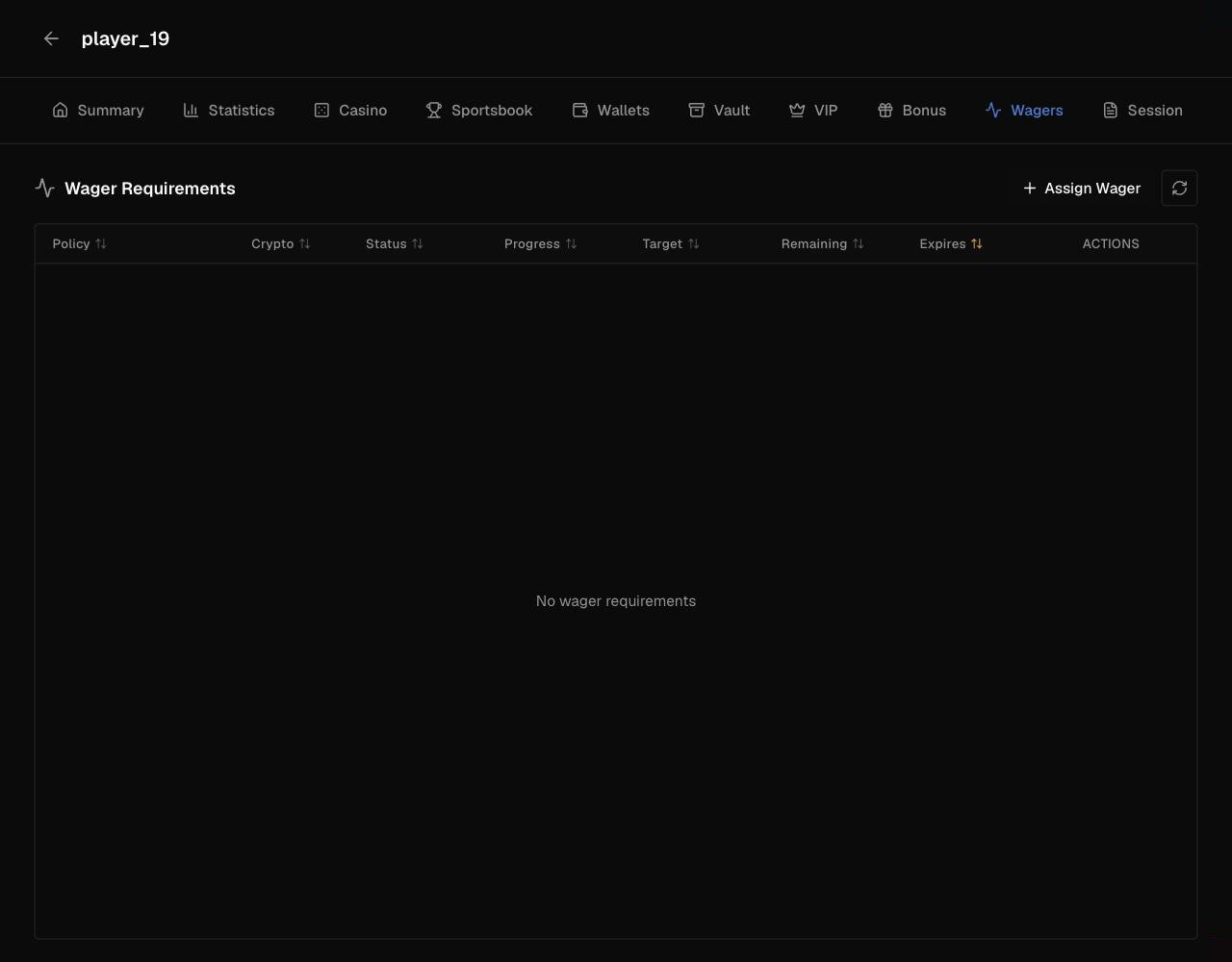
Wager Requirements lists the wagering requirements on this player, with policy, currency, status, progress, target, remaining and expiry.
Assigning a wager bonus
- Click Assign Wager.
- Select a Wager Policy.
- Click Assign Wager.
How it works:
- The wager bonus is assigned with the status ASSIGNED.
- The player sees it in the bonuses tab of their account.
- On the player's next deposit the bonus activates automatically, and the wager binds to the currency of that deposit.
You can also credit the wallet at the same time to activate the bonus immediately.
Session
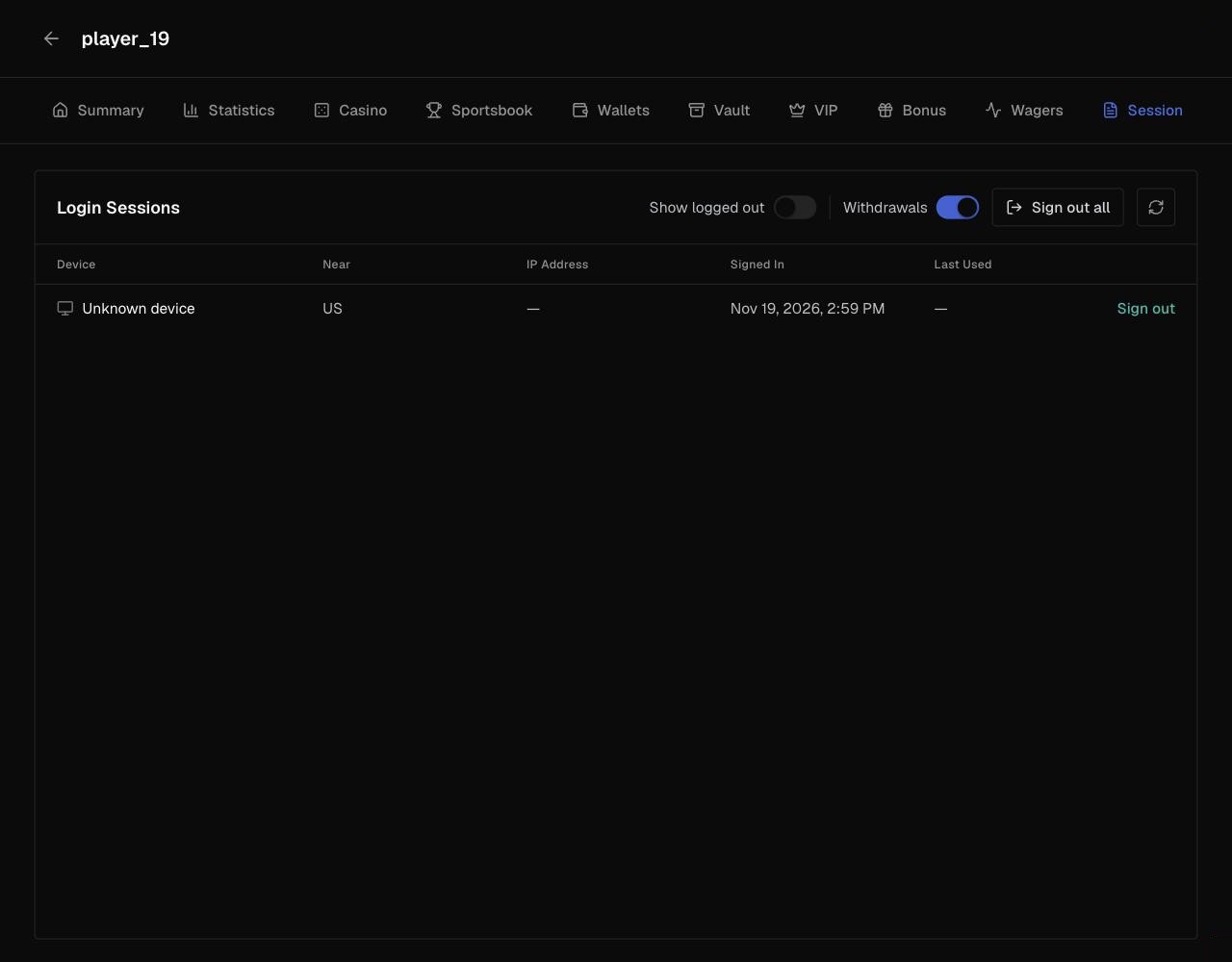
Login Sessions lists where the player is signed in.
| Column | What it shows |
|---|---|
| Device | The device or browser |
| Near | The approximate location |
| IP Address | The address the session came from |
| Signed In / Last Used | When the session started and when it was last active |
| Action | What it does |
|---|---|
| Sign out | Ends one session |
| Sign out all | Ends every session. The player must sign in again everywhere |
| Show logged out | Includes sessions that have already ended |
Use Sign out all after you ban a player or when an account looks compromised.
KYC
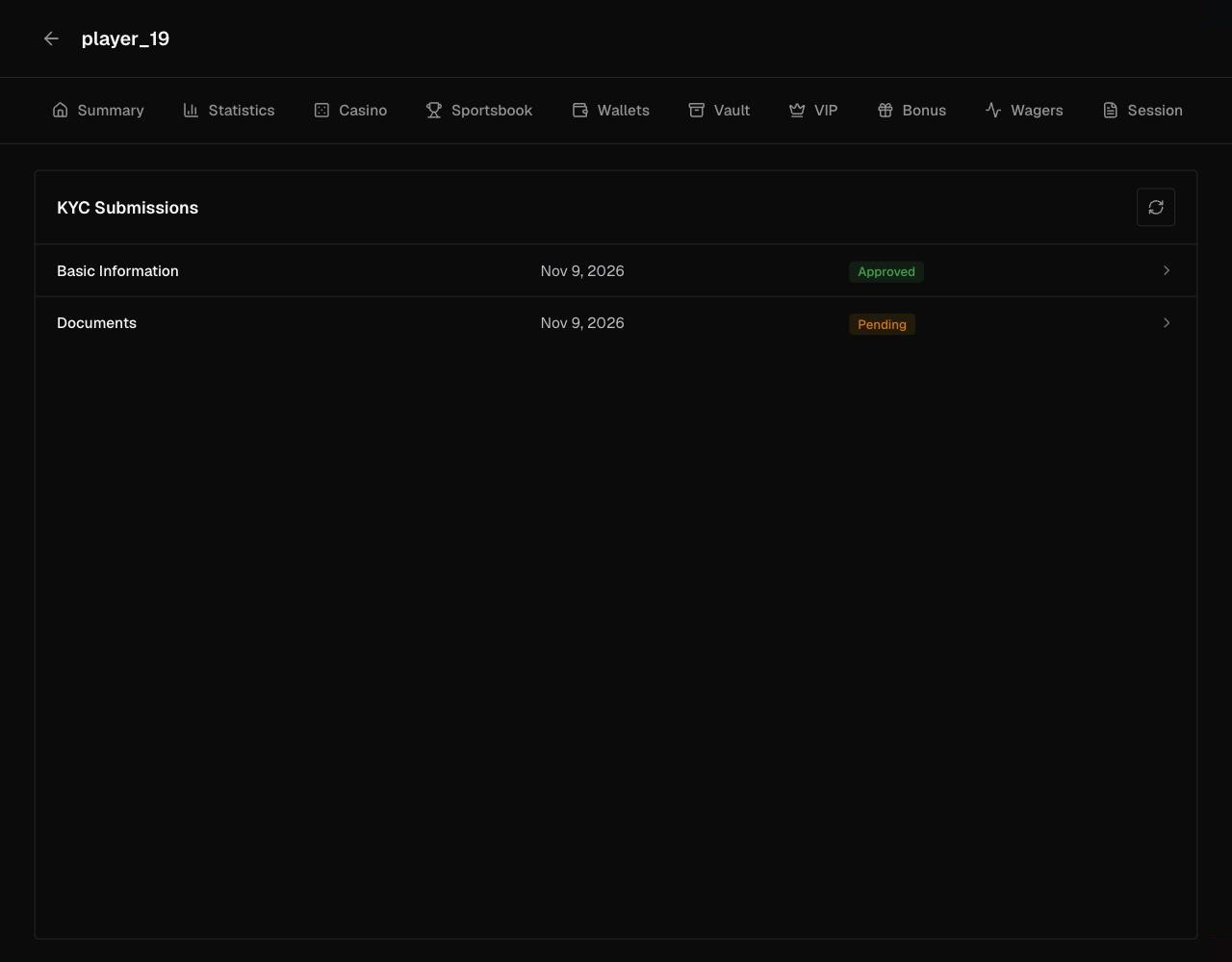
KYC Submissions lists every level the player has submitted, with the date and status (Approved, Pending or Declined). Click a submission to open it.
On a packs platform
A packs player's profile has the same header, Summary, Wallets, VIP, Bonus, Session and KYC tabs. The play tabs are different.
Statistics
The headline tiles change to pack measures.
| Tile | What it is |
|---|---|
| GGR | What the platform has won from this player. Negative means the player is ahead |
| Net Deposit | Deposits minus withdrawals |
| Hold | The share of pack spend the platform kept |
| Inventory Value | The value of the cards the player holds, priced at buy-back, as of today |
| Avg Pack Price | The average price of the packs they opened |
| Packs Opened | How many packs they have opened |
| Hit Rate | How often they pulled a top-tier card |
Pack Analytics adds rips, hits, pack spend, pull value and the Player P&L, plus top-five lists of pack types by opens and by spend.
A player with a large positive P&L and a high inventory value is holding cards they can still sell back. Their buy-backs have not reached your books yet.
Packs
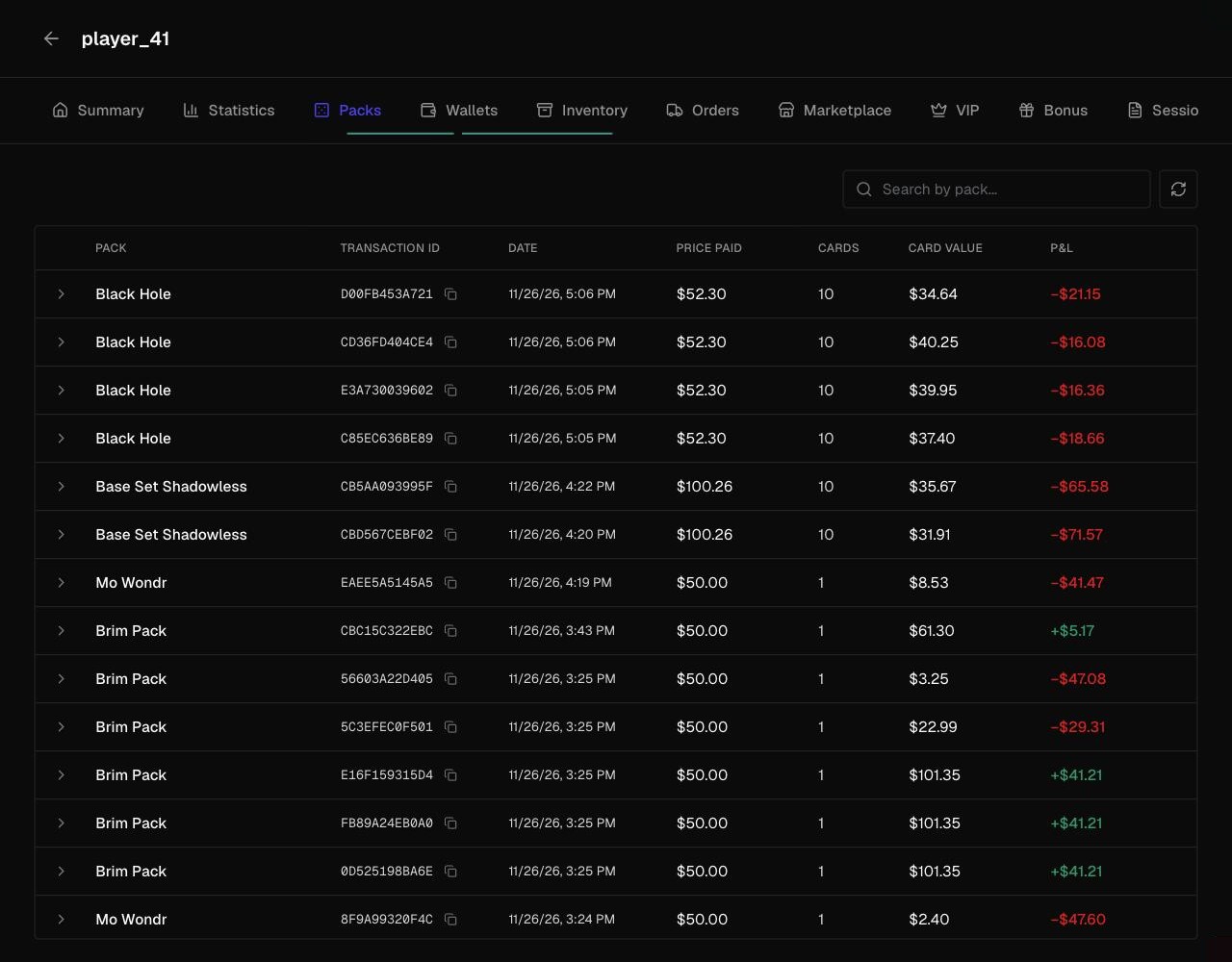
One row for every pack the player has opened.
| Column | What it shows |
|---|---|
| Pack | The product opened |
| Transaction ID | The rip's ID, with a copy button |
| Date | When it was opened |
| Price Paid | What the player paid |
| Cards | How many cards the rip revealed |
| Card Value | The total value of those cards |
| P&L | Card value against price paid, from the player's side. Green means the player came out ahead |
Inventory
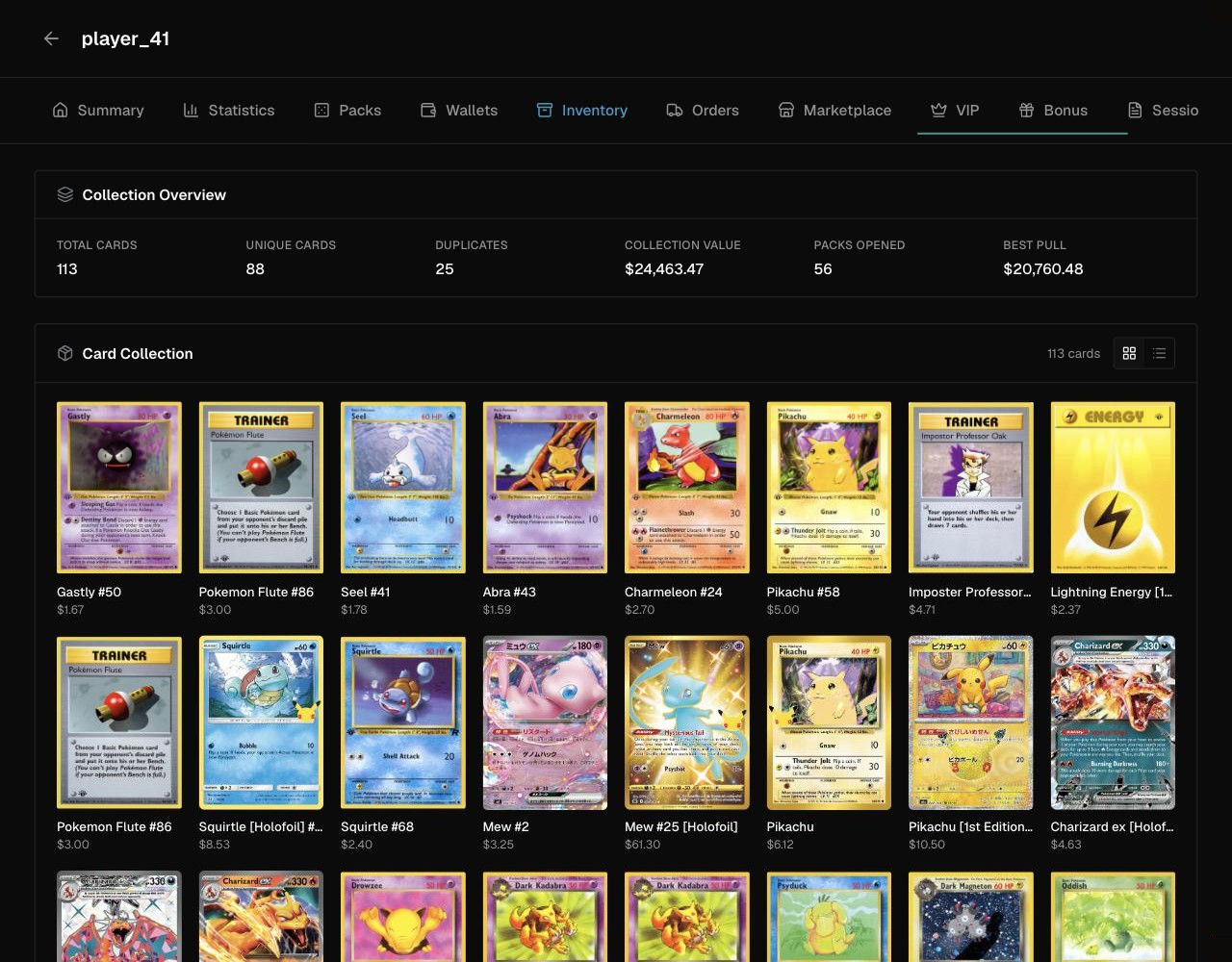
Collection Overview summarises what the player holds: total cards, unique cards, duplicates, collection value, packs opened and their best pull. Card Collection lists the cards themselves, as a grid or as rows.
Orders
Shipping orders the player has placed, with the items, transaction ID, date placed, status and value. Shipping rules are set under Pack settings.
Marketplace
The player's marketplace activity: the card, the type of transaction, its ID, the date and the amount.
Coming soon
The Affiliate, Communication and Limit tabs are placeholders today. Player limits are set for everyone under Limits.